
Managing emails can quickly become overwhelming — especially when your inbox is full of repetitive questions, promotional emails, and messages that don’t need your immediate attention.
In this guide, you’ll learn how to build an AI-powered email assistant using n8n and OpenAI that can:
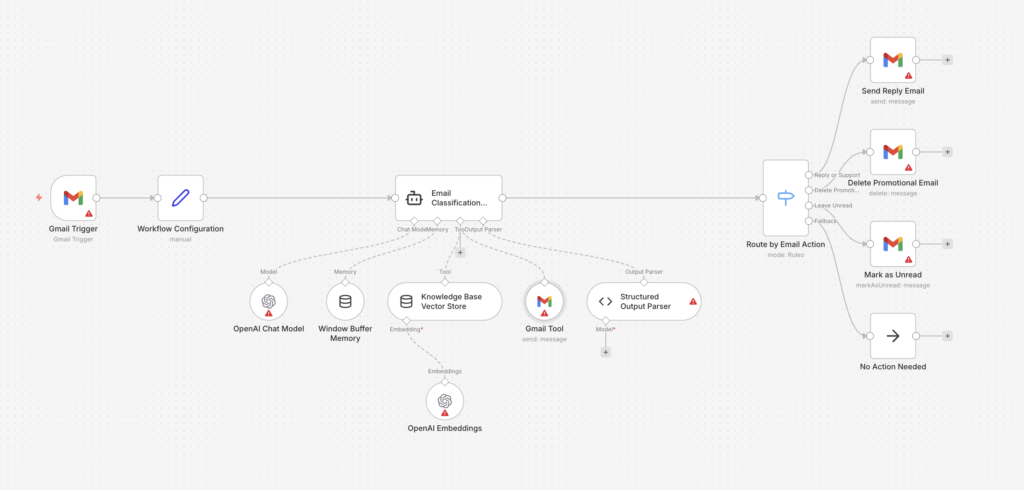
- Read incoming emails automatically
- Decide whether an email should be answered, deleted, or left unread
- Draft and send replies using AI
- Use memory and a knowledge base for smarter responses
- Safely avoid replying to emails that require human judgment
This workflow is designed to save time without losing control.
What This AI Email Automation Can Do
Before we dive into the setup, here’s what the automation does at a high level:
- Monitors your Gmail inbox
- Extracts key email details (sender, subject, body)
- Uses AI to classify the email
- Automatically:
- Replies to emails it can confidently answer
- Deletes obvious promotional or spam emails
- Leaves complex or sensitive emails unread for manual review
This is not a “reply to everything” bot — it’s a controlled, intelligent assistant.
Tools & Requirements
To follow this guide, you’ll need:
- An active n8n instance (self-hosted or cloud)
- A Gmail account connected to n8n
- An OpenAI API key
- Basic familiarity with n8n nodes (no coding required)
Workflow Architecture Overview
Here’s how the automation works step by step:
- Gmail Trigger – Detects new incoming emails
- Workflow Configuration (Set Node) – Standardizes email data
- AI Email Classification Agent – Decides what to do with the email
- Memory & Knowledge Base – Helps AI give better responses
- Structured Output Parser – Forces reliable AI decisions
- Switch Node – Routes emails based on AI decision
- Gmail Actions – Reply, delete, or mark as unread
Each step is explained in detail below.
Step 1: Set Up the Gmail Trigger
Start by adding a Gmail Trigger node.
Configuration:
- Trigger on: New Emails
- Polling interval: Every minute (or adjust as needed)
This node listens for new emails arriving in your inbox.
Step 2: Normalize Email Data (Set Node)
Add a Set node after the Gmail Trigger.
Create the following fields:
emailSubject→ Email subjectemailBody→ Plain text or HTML bodyemailFrom→ Sender’s email addressemailId→ Gmail message IDthreadId→ Gmail thread ID
This step ensures all downstream nodes receive clean, consistent data.
Step 3: Add the AI Email Classification Agent
This is the core intelligence of the workflow.
Add an AI Agent (LangChain Agent) node and configure it with a system prompt similar to:
You are an intelligent email classification assistant.
Classify each email into one of the following:
- answer
- delete
- leave_unread
The AI’s responsibilities:
- Understand the intent of the email
- Decide whether it can be answered safely
- Draft a professional reply if needed
- Avoid replying to sensitive or unclear emails
This step is what makes the automation smart, not risky.
Step 4: Connect the OpenAI Chat Model
Add an OpenAI Chat Model node and connect it to the agent.
Recommended settings:
- Model: GPT-4 / GPT-4o
- Temperature: 0.6 – 0.7 (balanced creativity and control)
This model powers the reasoning and response generation.
Step 5: Add Conversation Memory
Attach a Window Buffer Memory node to the agent.
Why this matters:
- Allows the AI to remember recent interactions
- Prevents repetitive or contradictory responses
- Improves email thread continuity
This is especially useful for ongoing conversations.
Step 6: Add a Knowledge Base (Vector Store)
Add a Vector Store with OpenAI Embeddings.
Use this to store:
- FAQs
- Product or service information
- Support documentation
The AI can now search your knowledge base before replying, making responses more accurate and consistent.
Step 7: Enforce Structured AI Output
Add a Structured Output Parser node.
Force the AI to return data in this format:
action: answer | delete | leave_unreadresponse: email reply (only if action = answer)reasoning: short explanation for the decision
This step is critical for safety and reliability.
Step 8: Route Emails Using a Switch Node
Add a Switch node based on the action field.
Create three routes:
Route 1: Answer
- Sends an email reply using Gmail
- Uses:
- Original sender
- “Re:” subject
- AI-generated response
Route 2: Delete
- Deletes promotional or spam emails automatically
Route 3: Leave Unread
- Marks the email as unread
- Keeps it for manual review
Optional: Add a No-Op node as a fallback.
Step 9: Test the Workflow
Before activating:
- Send test emails:
- A support question
- A promotional email
- A complex or sensitive email
- Verify:
- Replies are professional
- Spam gets deleted
- Important emails are left untouched
Once verified, activate the workflow.
Why This Approach Is Safe and Scalable
This automation is designed with guardrails, not blind automation:
- AI must justify its action
- Structured outputs prevent hallucinations
- Emails needing judgment are never auto-replied
- Easy to expand with more rules or data sources
This makes it suitable for:
- Business inboxes
- Support teams
- Founders and consultants
- High-volume email users
Download workflow here
- This update keeps the original angle of How to Automatically Read, Classify, and Reply to Emails Using AI (Step-by-Step n8n Guide) and adds a clearer decision framework, practical checklist, FAQs, and conversion-focused next steps.
- Readers should leave with a better understanding of what to do first, what to avoid, and when to ask for expert support.
- The guidance is additive only: title, slug, and core angle are preserved.
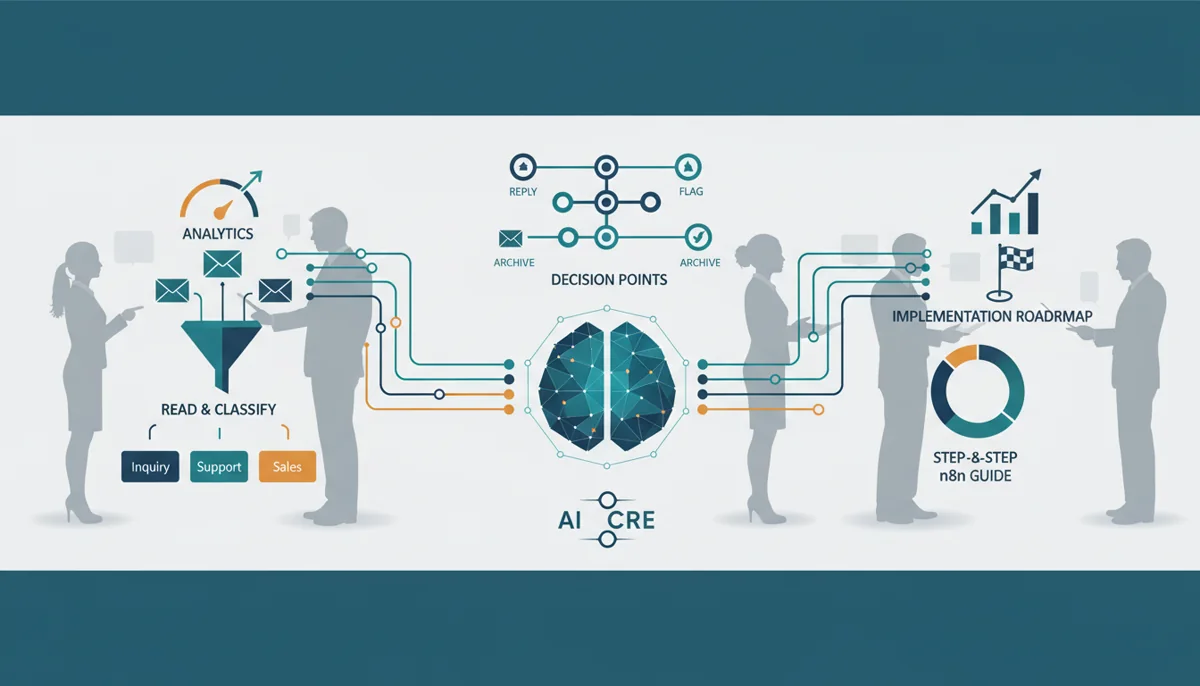
How to use this guide in practice
Treat this article as a starting point, then connect the advice to your business model, customer journey, and current marketing stack. A useful implementation plan should identify the outcome, the first action, the owner, the metric, and the point where the work needs expert review. For broader support, compare the recommendation with Media87 digital marketing services at Media87.
| Decision area | Practical check | Risk to avoid |
|---|---|---|
| Goal | Define the commercial result before choosing tools or tactics. | Doing activity that does not connect to leads, sales, retention, or trust. |
| Workflow | Break the work into a simple first version, then improve it monthly. | Building a complex system before proving the basics. |
| Measurement | Track a small set of useful KPIs and review them regularly. | Reporting vanity metrics without decisions attached. |
FAQs
What should I do first?
Start with the highest-friction step in the current workflow, then improve one measurable outcome before adding complexity.
When should I ask for help?
Ask for help when the work affects revenue, customer experience, tracking accuracy, or public brand trust.
How often should this be reviewed?
Review performance monthly and update the process when customer behaviour, platform rules, or business priorities change.
Quality gate repair: implementation safeguards for AI email workflows
Before connecting an AI email workflow to a live inbox, define exactly which messages the system may classify, which messages it may draft only, and which messages it must never answer without human review. Good candidates for automation include receipt acknowledgements, lead routing, meeting-request triage, simple support categorisation, and internal follow-up reminders. Poor candidates include legal complaints, billing disputes, sensitive HR messages, angry customers, refund decisions, and anything that could create a contractual commitment.
A reliable n8n setup should also keep a clear audit trail. Save the original message ID, sender, classification label, confidence score, suggested response, final action, and the workflow version that made the decision. This protects the business when a customer asks why a message was handled a certain way and gives the marketing or operations team enough evidence to improve prompts without guessing.
- Start in draft-only mode: let the workflow classify and draft, but require a person to approve replies for the first batch.
- Use confidence thresholds: auto-route low-confidence messages to a human queue instead of forcing a response.
- Keep exclusion rules: block auto-replies for payment, legal, complaints, confidential files, unsubscribe requests, and VIP accounts.
- Review weekly samples: check both successful automations and rejected messages to tune categories and prompts.
- Measure business impact: track response time, missed leads, reply accuracy, escalation rate, and customer satisfaction signals rather than only email volume.
What to measure after the workflow goes live
The first metric is response speed, but speed alone is not enough. A fast inaccurate reply damages trust. Track the percentage of messages classified correctly, the percentage of AI drafts edited by a human, the number of messages escalated, and the number of leads or support requests that received a useful next step. If the edit rate stays high after two or three review cycles, the prompt, category map, or knowledge source needs refinement before more automation is added.
For agencies and service businesses, the most useful commercial metric is often lead handling quality. Tag enquiries by service type, urgency, budget signal, and next action. Then connect high-intent enquiries to the right internal page, sales pipeline, or consultation workflow. This turns email automation from a generic productivity experiment into a measurable conversion support system.
Common AI email automation mistakes
| Mistake | Why it hurts | Better approach |
|---|---|---|
| Letting AI send every reply immediately | One weak answer can create confusion, refund pressure, or brand risk. | Use draft-only mode first, then enable auto-send only for narrow low-risk categories. |
| Using one broad prompt for every message | Sales, support, invoices, spam, and complaints need different handling logic. | Create intent categories and category-specific response rules. |
| Ignoring handoff rules | The workflow may keep responding when a customer clearly needs a person. | Escalate sensitive, angry, high-value, and low-confidence messages immediately. |
| Not logging decisions | The team cannot diagnose wrong replies or prove what happened. | Store classification, confidence, draft, final action, and workflow version. |
Bottom line: AI email automation works best when it is treated as a controlled operations workflow, not a magic inbox assistant. Keep the first version narrow, protect human handoff, measure accuracy, and expand only after the system proves it can handle real customer messages safely.