
Your Gmail profile photo is often the first thing people see when you land in their inbox. Whether you’re setting up a new account or finally replacing that generic initial icon with a professional headshot, here is exactly how to do it.
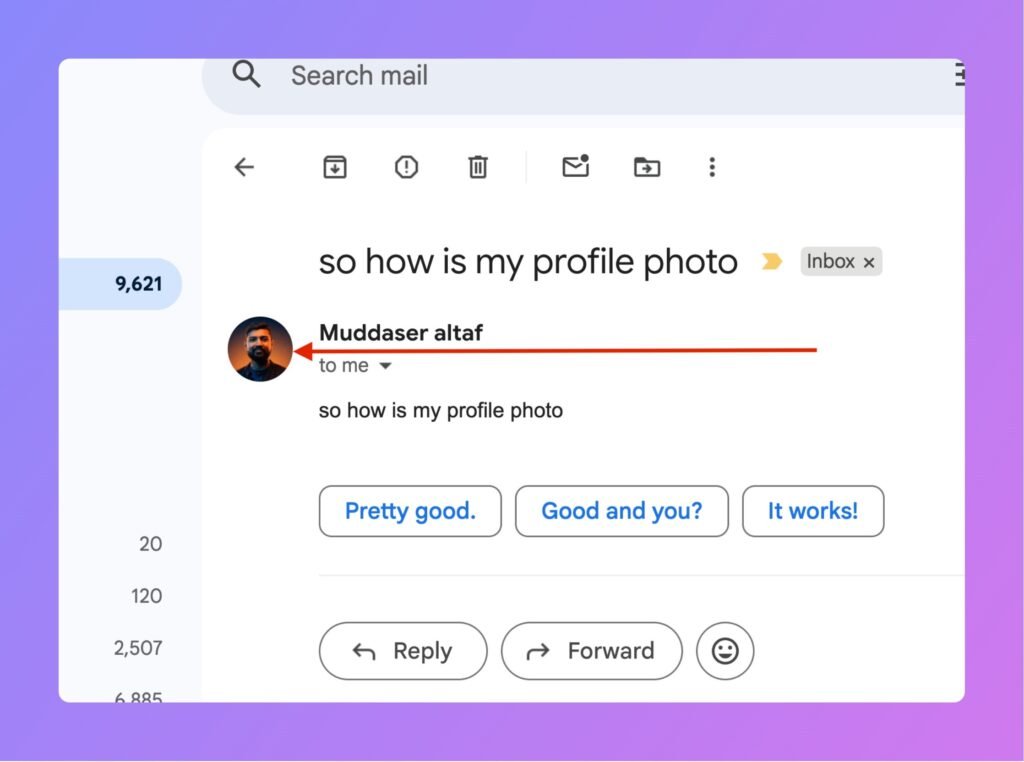
Method 1: On Your Computer (Desktop)
This is the fastest way to upload a high-quality photo from your files.
- Open Gmail: Go to mail.google.com and sign in.
- Click Your Current Icon: In the top right-hand corner of the screen, click on the circle (it will either have your current photo or a letter).
- Click the Camera Icon: Hover over your profile icon again; you should see a small Camera Icon over the circle. Click it.
- Select “Add Profile Picture”: A window will pop up. Click the Add profile picture button.
- Choose Your Source:
- Upload: Select a file from your computer.
- Google Photos: Choose an image already saved in your Google cloud.
- Crop and Rotate: Use the on-screen tools to center your face in the square.
- Save: Click Save as profile picture.
Method 2: Using the Gmail Mobile App (Android & iPhone)
If your favorite photo is saved on your phone’s camera roll, follow these steps:
- Open the Gmail App: Tap the app on your home screen.
- Tap Your Profile Icon: Look for your icon in the top right corner (next to the search bar).
- Manage Your Google Account: Tap the button that says Manage your Google Account.
- Go to Personal Info: Tap the Personal info tab at the top.
- Tap the Photo Icon: Under the “Basic info” section, tap the Photo row.
- Set Profile Picture: Tap Set Profile Picture (or Change) and choose to either “Take photo” or “Choose photo” from your gallery.
- Adjust and Accept: Move the photo to fit the frame and tap Accept or Done.
Cinematic photo prompt
go to nano banana (you can use google gemini for free:
Cinematic portrait with high-contrast dual-tone lighting, combining deep blues and fiery oranges. The mood feels dramatic, premium, and modern — like a movie poster or high-end branding website hero section.
Lighting & Color:
Key lighting: Strong overhead/front key light in warm orange/red tones.
Fill lighting: Cool blue gradient shadows on the opposite side of the face.
Color palette: Deep navy blue background fading into warm orange near the subject.
Contrast: Very high contrast, with sharp separation between warm + cool tones.
Subject Look:
Close-up portrait facing upward, looking upward, giving an inspiring, heroic vibe.
Low-angle camera perspective for a powerful, aspirational feeling.
Soft, subtle rim light around the edges to separate from background.
Composition:
Subject centered, but text area is intentionally left/right clear.
Smooth vignette effect around edges to focus attention on the face.
Clean fade between colors (no harsh transitions).
Texture & Finish:
Smooth, professional, glossy finish — similar to premium ad photography.
Subtle film-like grain for realism (optional).
Skin smoothness maintained but not overly retouched.
Background:
Gradient blend from dark blue at the top to warm orange/red at the bottom.
No distractions; fully blurred or minimal texture.
Mood / Branding Feel:
Bold, confident, modern.
Feels like a brand designer or creative professional’s hero banner.
Strong cinematic atmosphere with directional lighting. image in 9:16 ratio
Video generation
you can go to grok for free video generation or veo 3 or kling
static camera, very subtle movement smooth 3d video, very light observation movement, not extra effect, very relaxed, person looks at the camera
Gif creation:
You can either use CapCut like shown in the video or you can use any mp4 to gif creator to create your gif.
Then all you need to do is to upload it to your Google profile.